
Most contact lists start life in a spreadsheet. A form export, a customer sheet from your billing tool, a list of students from the admissions office. Before any of those people get an email from you, that sheet has to become a clean, usable contact list. This guide walks through how to prepare an Excel or CSV file so the import goes smoothly and every email lands with the right name in it.
Start with permission, not with the file
Before you open the spreadsheet, ask one question: did everyone on this list agree to hear from you? Customers who bought from you, students who enrolled, members who signed up and newsletter subscribers usually did. A list of emails copied from websites, bought from a vendor or collected at an event without asking did not.
This matters for three reasons. People who never asked for your email mark it as spam, and that hurts every future email you send from the same address. Gmail and other providers watch those complaints closely. And in India, the Digital Personal Data Protection Act, 2023 is built around consent for using personal data. Import only the people who expect to hear from you, and keep a note of how they signed up.
Set up your columns
A good import file has one row per person and one column per detail. The first row should hold the column names. Keep them simple and obvious:
- Email for the email address. This is the only column an email campaign really needs.
- First name and Last name in separate columns, so you can greet people by first name.
- Company, City, Course or anything else you want to mention in the email.
- Phone if you also plan to send WhatsApp messages. Include the country code, such as +91.
Avoid merged cells, blank rows between people, totals at the bottom and notes typed into random cells. They either break the import or turn into strange contacts.
Clean the data before you import
Ten minutes of cleaning saves you from emails that start with "Hi ," or bounce back. Work through this checklist:
- Remove duplicates. In Excel, select the data and use Data → Remove Duplicates on the Email column. Sending the same person two copies looks careless.
- Trim spaces. Extra spaces before or after an address make it invalid. The
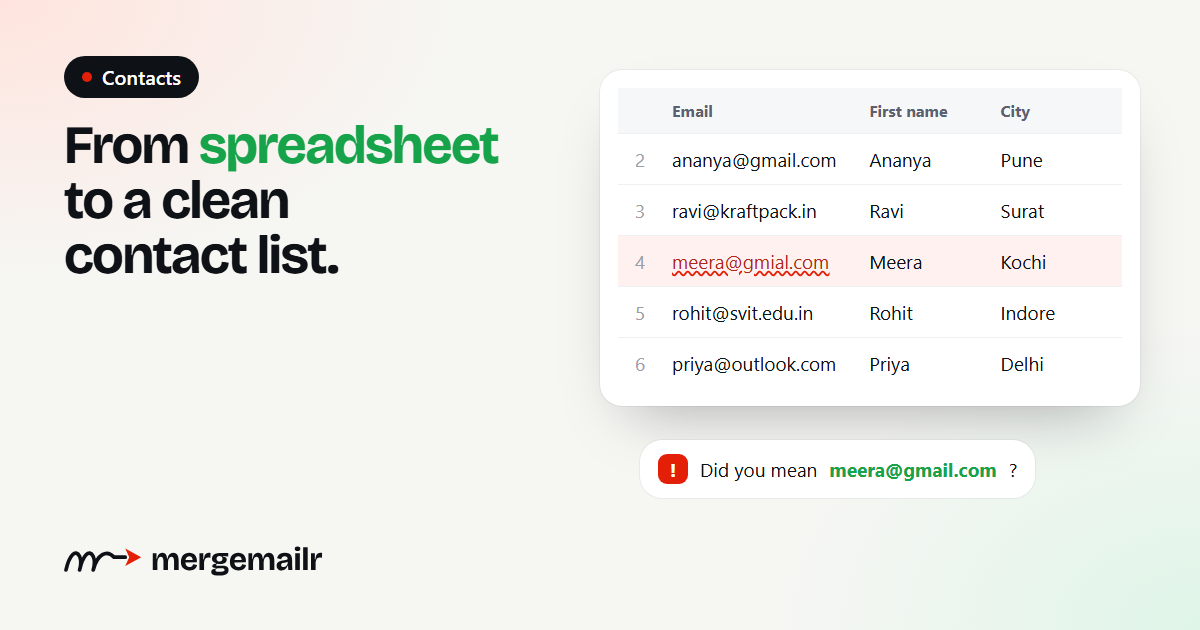
TRIM()function in a helper column fixes this quickly. - Fix obvious typos. Look for domains like gmial.com, gmail.con or yaho.com. They are almost always mistakes.
- One address per cell. If a cell says "ravi@abc.com, accounts@abc.com", split it into two rows.
- Tidy the names. Change "RAVI KUMAR" or "ravi" to "Ravi" so your greeting reads naturally.
Personalise with merge fields
Once your columns are clean, you can use them inside the email. In MergeMailr you write placeholders like {{first_name}} or {{company}}, and each person gets their own value. "Hi {{first_name}}, your order from {{company}} has shipped" becomes "Hi Meera, your order from Kochi Crafts has shipped".
Some rows will have missing values. Add a fallback so the sentence still reads well: {{first_name|there}} becomes "Hi there" when a first name is empty. Always preview the email with a real contact from your list before you send it.
Save as CSV or keep it as Excel
Most tools accept both .xlsx and .csv files. If you save as CSV, choose "CSV UTF-8" in Excel. Plain CSV can scramble names with accents or Indian-language characters. Keep your data on the first sheet of the workbook, and make sure the first row is the header row.
Importing the file into MergeMailr
When your file is ready, the import itself takes a minute:
- Go to Contacts → Import contacts and give the list a name you will recognise later, such as "October customers".
- Upload the file. MergeMailr reads your column names and asks you to match each one to a field: Email, First name, Phone, a custom field, or "Ignore this column".
- Confirm that everyone in the file agreed to hear from you. The import does not start without this confirmation.
- Start the import. Large files run in the background, and you get a notification when the list is ready.
During the import, MergeMailr checks every address. It skips invalid formats, temporary inboxes and domains that cannot receive email. It also flags likely typos such as gmial.com and suggests the correct address. If someone has a wrong email but a valid phone number, they are still added for WhatsApp. Next to the list, "See why" shows each skipped row with its row number, so you can fix your file and import it again without creating duplicates.
Keep the list healthy over time
A contact list is not a one-time job. People change jobs, abandon old inboxes and lose interest. A few habits keep your list in good shape:
- Add new contacts in small batches as they sign up, rather than one giant import a year later.
- Respect unsubscribes. MergeMailr adds an unsubscribe link to every email and skips anyone who used it in all your future campaigns, even if their address appears in another list.
- Watch failed sends in your campaign reports. Addresses that keep failing should be removed.
- Send regularly. A list you email once a year goes stale much faster than one you email every month.
A quick checklist
- Everyone on the list agreed to hear from you.
- One row per person, first row holds the column names.
- Separate columns for email, first name and anything you want to personalise.
- Duplicates removed, spaces trimmed, typos fixed.
- Saved as .xlsx or CSV UTF-8.
- A preview checked with a real contact before you hit send.
Get the spreadsheet right and everything after it gets easier: fewer bounces, fewer awkward greetings and emails that feel written for the person reading them.